
Author & publish entitlements
An entitlement is the grant — what a customer may use, under which plan and policies. Authoring and publishing them is the core Sales job, under the Sales group. (Sales)
Add the customer
Section titled “Add the customer”Customers live under Customers → Organizations. Create the organization (name, contact, billing details) before, or inline while, you create the order. Individual people belong to an org under Customers → Users.
Create the entitlement
Section titled “Create the entitlement”Under Sales → Entitlements, create an order. There are two ways:
- From an offer — the fast path. Pick a saved offer and the products, features, plan and policies come prefilled. Adjust what’s specific to this customer, and grant an add-on afterward if this customer needs one too.
- From scratch — choose the product, attach a plan, and set the policies yourself.
You’ll work across the entitlement’s panels (most are hidden while the record is an offer):
| Panel | What it’s for |
|---|---|
| Order Details | Customer, dates, pricing, offer mode — and Licensed products, the products included in the grant. On an offer it shows only the name, description, plan and suite: an offer has no customer, order number or references |
| Credits & Subscriptions | Prepaid credit balances and the subscription state |
| Assigned Users | The principals the grant is assigned to |
| Policies | How it may be activated and for how long — see Policies |
| Activation Codes | Codes the customer redeems (below) |
| Issued Licenses | The licenses activated against this grant |
| Usage Monitoring | Live metered usage against this grant’s quotas |
| Usage Plans | The plan in effect, and its current tier |
| Plan History | The audit trail of plan changes on this entitlement — when it changed, from which plan to which, and how |
| License Permissions | The features included |
| Audit Log | The change history of this entitlement |
Choose the suite
Section titled “Choose the suite”An entitlement’s products come from its suite, and the Suite card on Order Details is where you pick it. Assigning a suite licenses its products; Licensed products beside it lists what you get, which is why that list is read-only.
Pricing a single product creates a suite holding just it, so a one-product grant works the same way — pick the suite named after the product.
- Change suite swaps the products for the new suite’s members in one step, and clears the plan and trial: the new suite’s tiers are not the old one’s, so the earlier choice cannot carry over.
- Remove suite detaches every product and leaves the entitlement empty, ready for a different suite.
The suite can only be changed while the entitlement is offline for editing: a live grant’s products are what its issued licenses were built from. Take it offline, change the suite, bring it back online.
When a product is added, its features are snapshotted into the entitlement — a copy of the product as it is right then — so later catalog edits don’t change this grant.
If a product ever appears here that the suite does not contain — an import or a connector can attach one directly — Licensed products flags it and offers Match products to the suite, which brings the two back into agreement in one step.
Publish it
Section titled “Publish it”An entitlement has its own publication lifecycle: Draft → Published → Disabled → Archived. Only a Published entitlement can be activated. Model it in draft, then set it
to Published when it’s ready for the customer.
Two lifecycle rules:
- Publishing is gated on the catalog. Publish is refused while a granted feature’s catalog entry is still Draft — publish the feature first.
- Revoking needs offline first. A live (published) entitlement can’t be revoked directly — take it offline, then revoke. For a reversible hold, use pause/resume instead; see Renewals, credits & activations.
(Separately, its subscription status — Pending, Trialing, Active, Paused, Expired, Canceled — is computed at runtime from the policies and dates; you don’t set it by hand.)
Issue activation codes
Section titled “Issue activation codes”On the entitlement’s Activation codes tab, generate a code and send it to the customer to redeem. You can also manage codes in bulk under Sales → Activation Codes — create, edit and delete codes; the full code is visible in the grid’s Code column.
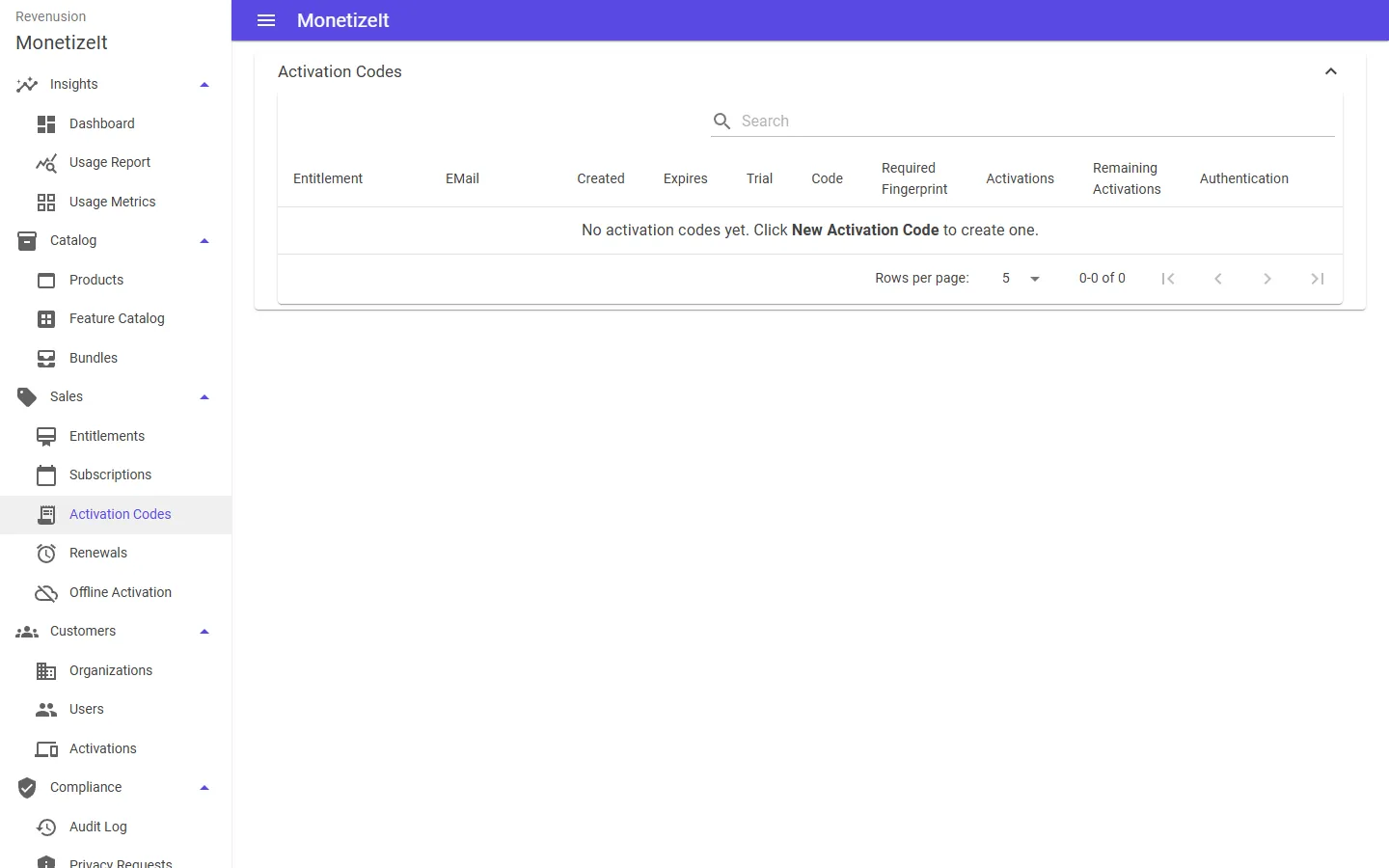
Activation Codes — generate one on an entitlement and send it to the customer to redeem.
Reuse with offers
Section titled “Reuse with offers”If you create the same grant repeatedly, save it as an offer — a saved template of products, features and policies you turn into entitlements per customer instead of filling in every field each time. The offer carries none of the customer’s own details — you pick the organization and fill in the contact, order number and references when you order from it. Tag the resulting entitlement with an external reference (a CRM or billing id) to keep it linked to your other systems.
- Tune how it activates → Set entitlement policies
- Later changes → Renewals, credits & activations
- The model in depth → Entitlements & offers